

Upload Images with PHP and Create Thumbnails

In web development, the image upload feature is one of the most common functions. It is often used in photo galleries, user profiles, e-commerce platforms, and content management systems. However, if images are uploaded without optimization, the file size can be too large, slowing down the website and consuming too much storage.
A simple solution is to create thumbnails. A thumbnail is a smaller version of the original image, used for previews. This helps improve performance, saves bandwidth, and makes the website look more organized.
Why Thumbnails Are Important
-
Save storage and bandwidth – Smaller images are lighter to load.
-
Improve website speed – Pages with many images load faster with thumbnails.
-
Better design – Thumbnails are perfect for galleries, product listings, or profile previews.
Diagram
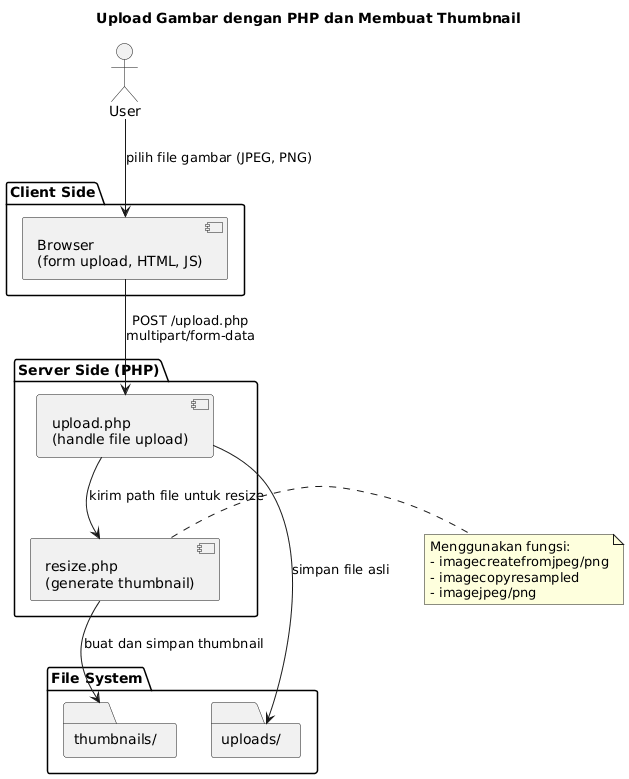
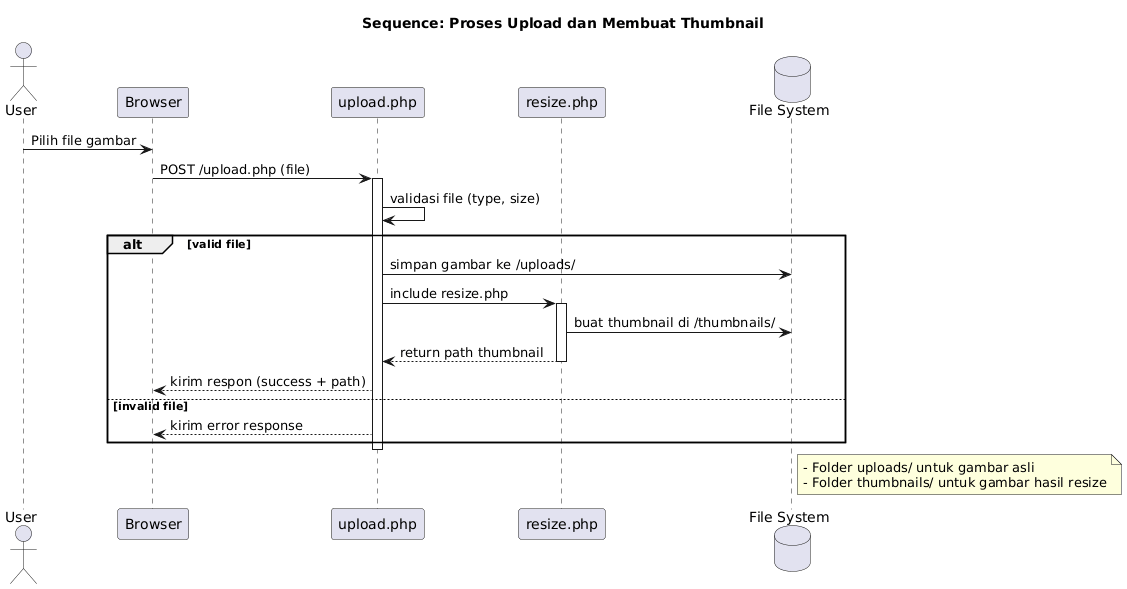
Basic Steps to Upload Images in PHP
-
Create an Upload Form
<form action="upload.php" method="post" enctype="multipart/form-data">
    Pilih gambar: <input type="file" name="fileToUpload">
    <input type="submit" value="Upload Gambar" name="submit">
</form>
-
Process the Upload in PHP
<?php $target_dir = "uploads/"; $target_file = $target_dir . basename($_FILES["fileToUpload"]["name"]); $imageFileType = strtolower(pathinfo($target_file, PATHINFO_EXTENSION)); // Cek apakah file benar-benar gambar $check = getimagesize($_FILES["fileToUpload"]["tmp_name"]); if($check !== false) { move_uploaded_file($_FILES["fileToUpload"]["tmp_name"], $target_file); echo "Upload berhasil!"; } else { echo "File bukan gambar."; } ?> -
Creating Thumbnails in PHP
Once the image is uploaded, we can create a smaller version using GD Library in PHP.
Example:
<?php
function createThumbnail($src, $dest, $desired_width) {
    $source_image = imagecreatefromjpeg($src);
    $width = imagesx($source_image);
    $height = imagesy($source_image);

    $desired_height = floor($height * ($desired_width / $width));

    $virtual_image = imagecreatetruecolor($desired_width, $desired_height);

    imagecopyresampled($virtual_image, $source_image, 0, 0, 0, 0,
        $desired_width, $desired_height, $width, $height);

    imagejpeg($virtual_image, $dest);
}

// Contoh penggunaan
createThumbnail("uploads/foto.jpg", "uploads/thumb_foto.jpg", 150);
?>
The code above generates a thumbnail with a fixed width of 150px while keeping the original aspect ratio intact.
-
Practical Tips
Limit maximum upload size, e.g., 2MB per image.
Allow only specific file formats such as JPG, PNG, or GIF.
Store thumbnails in a separate folder for easier management.
Use unique filenames to avoid overwriting existing files.
Conclusion
Uploading images with PHP is a basic feature, but adding thumbnail creation makes your website faster, more efficient, and visually cleaner. With GD Library, you can automatically generate thumbnails for every uploaded image, ensuring an optimized and user-friendly experience.