
How to Run a Local LLM with an NVIDIA GPU: A Beginner's Guide
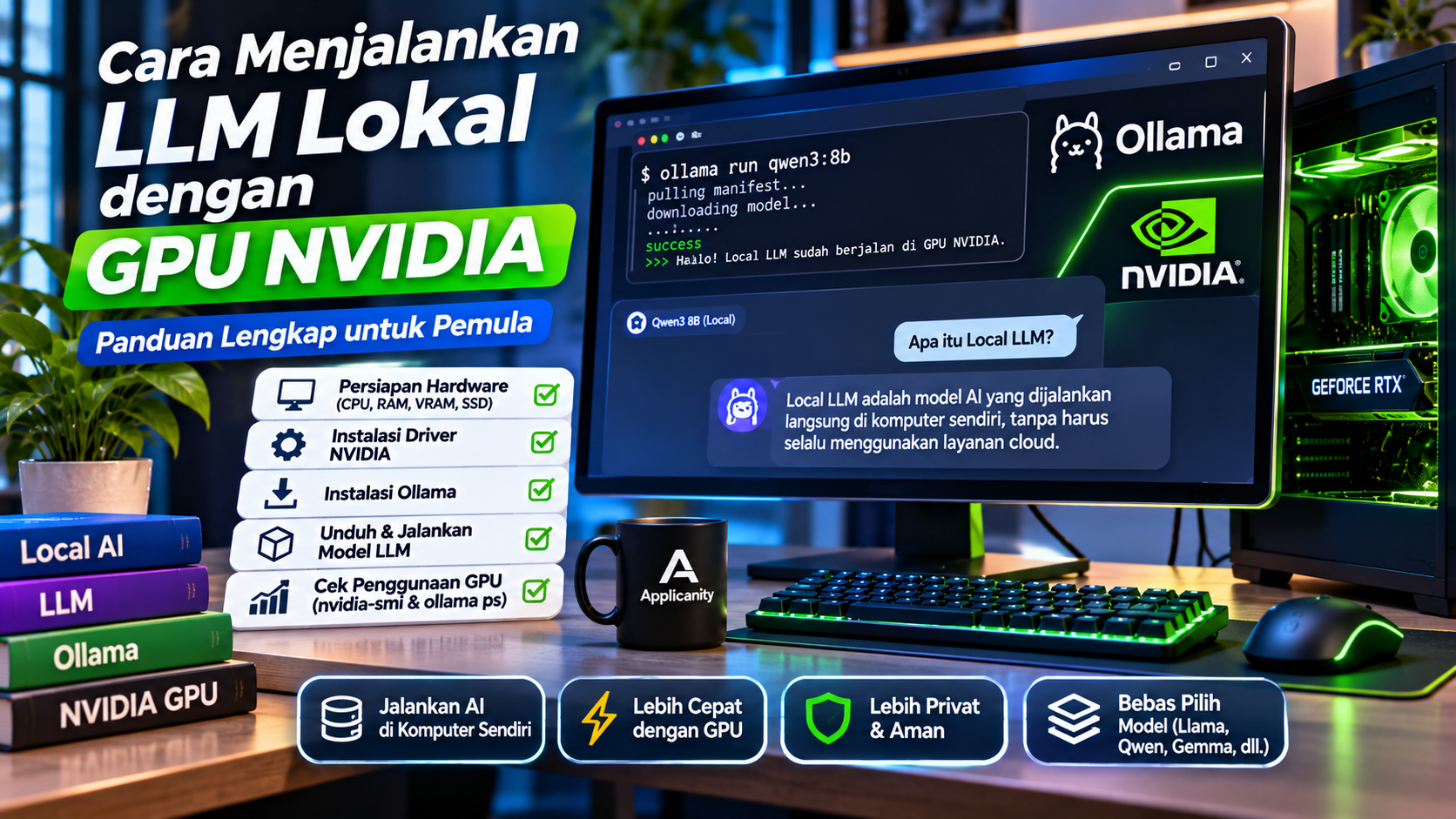
Running Artificial Intelligence (AI) no longer requires using online services such as ChatGPT or Gemini. With Local AI technology, you can run a Large Language Model (LLM) directly on your own computer and use an NVIDIA GPU to accelerate the process.
The good news is that you do not need an expensive server to get started. A desktop computer with a CUDA-compatible NVIDIA GPU can run various local AI models, as long as its memory capacity and hardware specifications are sufficient.
One application that makes this process easier is Ollama. With a few simple commands, you can download an AI model, run it, and start interacting through a terminal or chat application.
In this article, we will explain how to run a local LLM using an NVIDIA GPU, covering hardware preparation, driver installation, Ollama setup, model selection, and how to verify that your GPU is actually being used.
1. What Is a Local LLM?
An LLM, or Large Language Model, is an artificial intelligence model trained on large amounts of data to understand and generate text based on user instructions.
Some well-known model families include:
-
Llama.
-
Qwen.
-
Gemma.
-
Mistral.
-
DeepSeek.
-
Phi.
These models are commonly accessed through cloud services. When a user submits a question, the request is processed by the service provider's servers.
With a local LLM, the model is downloaded and run directly on your own computer. The response generation process uses your computer's resources, especially RAM, CPU, and GPU.
This means your computer can become a platform for running your own AI assistant.
2. Why Use an NVIDIA GPU?
LLMs can run using only a CPU. However, the process can feel slow, especially when working with larger models.
GPUs contain many processing units that can work in parallel. This makes them suitable for the large number of mathematical operations required when an AI model generates responses.
NVIDIA GPUs are widely used for AI workloads because of the CUDA ecosystem and broad software support.
Some advantages of using an NVIDIA GPU for local LLMs include:
-
Faster response generation compared with CPU-only processing in many cases.
-
The ability to run larger models when sufficient VRAM is available.
-
Support for various AI frameworks and runtimes.
-
A broad software ecosystem.
-
The ability to handle other AI workloads beyond LLMs.
However, not every operation must run entirely on the GPU. If a model is too large to fit into VRAM, some of its processing may be handled by system RAM and the CPU. This usually results in slower performance.
3. Hardware Requirements Before Running an LLM
Before installing any software, make sure your computer has suitable specifications.
There are three main hardware components to consider.
A. GPU and VRAM
VRAM is dedicated memory available on a graphics card. When running an LLM, VRAM stores the model and data being processed by the GPU.
More VRAM generally provides more flexibility when choosing which models to run.
Here is a general overview of GPU memory capacity for getting started:
| VRAM Capacity | General Usage |
|---|---|
| 4 GB | Trying small models with limited settings |
| 6 GB | Small models and some optimized lightweight models |
| 8 GB | More options for small to medium models |
| 12 GB | Flexible enough to try some quantized 7B–8B models |
| 16 GB | More room for models and longer context |
| 24 GB or more | Greater flexibility for larger models |
This table is only a general guide. It does not guarantee that every model of a particular size will fit. VRAM requirements are also affected by quantization, context length, cache size, and the application being used.
For example, an NVIDIA GeForce RTX 3060 with 12 GB VRAM can be an interesting starting point for experimenting with small and medium-sized local models.
B. System RAM
Besides VRAM, system RAM is also important.
RAM is used by the operating system, supporting applications, and parts of the model that cannot fit entirely into GPU memory.
As a general guide:
-
8 GB RAM: Can still run small models, but available working space is limited.
-
16 GB RAM: More comfortable for basic experiments.
-
32 GB RAM: Provides more room for models and other applications.
-
64 GB RAM or more: Offers greater flexibility for larger models and additional workloads.
If your system has insufficient RAM, your computer may become slow when running an AI model alongside other applications.
C. SSD Storage
AI model files can range from several gigabytes to tens of gigabytes.
Make sure you have enough available storage. An SSD is recommended because it can make reading and loading model files more responsive.
Remember to account for multiple models, temporary files, and application updates.
4. Make Sure Your NVIDIA GPU Is Detected
Before installing Ollama, make sure the NVIDIA driver is installed correctly.
The easiest way to check is by using the nvidia-smi command.
For Windows
-
Make sure the NVIDIA driver is installed.
-
Open Command Prompt or PowerShell.
-
Run the following command:
nvidia-smi
If the driver is working correctly, you should see information such as your GPU name, driver version, VRAM usage, and GPU activity.
For Ubuntu or Linux
Open a terminal and run:
nvidia-smi
If the command works, the system will display information about your installed NVIDIA GPU.
If you receive a message saying the command cannot be found or the GPU is not detected, check your NVIDIA driver installation.
You can download drivers from NVIDIA's official website:
https://www.nvidia.com/Download/index.aspx
Important note: When using the official Ollama package, you generally do not need to install the CUDA Toolkit manually. Ollama provides NVIDIA GPU support through its bundled runtime components. The most important requirements are a compatible NVIDIA driver and a supported GPU. CUDA Toolkit requirements may differ if you are building AI software or frameworks directly from source code.
5. Install Ollama
Ollama is an application that makes running local AI models easier.
You do not need to manually configure the entire model-loading process. Ollama helps download models, run them, and provide access through a terminal or local API.
Official website:
A. Installing on Windows
The installation process is straightforward:
-
Open the official Ollama website.
-
Select the Windows version.
-
Download the installer.
-
Run the installer and follow the setup instructions.
-
When installation is complete, open PowerShell or Command Prompt.
You can check whether Ollama is installed by running:
ollama --version
If the Ollama version appears, the basic installation is complete.
On Windows, Ollama runs as a native application in the background. Its command-line interface is available through PowerShell and Command Prompt.
B. Installing on Ubuntu or Linux
On supported Linux distributions, you can install Ollama through the terminal.
Run the following command:
curl -fsSL https://ollama.com/install.sh | sh
After the installation is complete, verify it:
ollama --version
If you are using Linux with the Ollama service, make sure it is running:
sudo systemctl status ollama
If it is not active, you can start it using:
sudo systemctl start ollama
Service management commands may vary depending on the installation method and Linux distribution.
6. Download and Run an AI Model
Once Ollama is installed, the next step is choosing an AI model.
For your first experiment, you can use Qwen3. This model is available in several sizes, allowing users to choose one that matches their hardware.
For example, run the following model:
ollama run qwen3:4b
Ollama will download the model if it is not already available on your computer. Once the process is complete, you can type questions directly into the terminal.
Example question:
Explain what Local AI is in simple language.
You can also try a larger model:
ollama run qwen3:8b
However, an 8B model requires more resources. Make sure your VRAM and RAM are sufficient before running it.
To view your downloaded models:
ollama list
To remove a model you no longer use:
ollama rm qwen3:4b
Model names and available sizes may change as the catalog is updated. Check the official model library before downloading:
7. Verify That Ollama Is Using Your NVIDIA GPU
This is one of the most important steps.
Installing Ollama and running a model does not necessarily mean the model is fully using your GPU. Depending on the situation, Ollama may use the CPU, GPU, or a combination of both.
There are two simple ways to check.
A. Use nvidia-smi
Open a terminal or PowerShell window and run:
nvidia-smi
Keep the command running, then start your AI model in another terminal.
Watch the VRAM usage and processes using the GPU. If the model is running on the GPU, memory usage will generally increase.
You can also monitor GPU usage continuously:
nvidia-smi -l 1
This command refreshes GPU information every second.
B. Use ollama ps
Ollama provides a command to check currently running models:
ollama ps
Look at the PROCESSOR column.
Example output:
NAME          SIZE      PROCESSOR
qwen3:4b      3.1 GB    100% GPU
If it shows 100% GPU, the model is fully loaded into GPU memory.
If it shows 100% CPU, the model is running using system memory.
If it shows a split such as 40%/60% CPU/GPU, part of the model is stored in RAM while the remaining part is stored in VRAM.
Remember that the output above is only an example. Actual results depend on the model, hardware, and configuration.
8. Understand Quantization to Fit Models into VRAM
When searching for AI models, you may encounter terms such as Q4, Q5, Q8, or other quantization formats.
Quantization is a process that reduces the numerical precision used to store AI model weights.
In simple terms, quantization makes model files smaller, allowing them to run more easily on computers with limited memory.
For example:
-
A model using Q4 quantization generally requires less memory than a version with higher precision.
-
Q5 can provide a different balance between size and quality.
-
Higher-precision models usually require more memory.
However, a smaller model does not always mean a better model. Certain quantization levels can affect response quality.
Ollama provides many models in optimized formats. You can choose an appropriate model tag from its official catalog without manually modifying model files.
9. Tips for Better Local LLM Performance
After successfully running a model, there are several things you can do to improve the experience.
1. Choose a Model That Matches Your VRAM
Do not immediately try to run a model that is too large.
Start with a small model, such as Qwen3 4B. If performance is good and memory usage is manageable, you can try a larger model.
2. Pay Attention to Context Length
Context length is the amount of text, measured in tokens, that a model can consider during a processing session.
A longer context requires more memory, especially for storing the KV cache.
This means a model that initially fits into GPU memory may no longer fit after the context length is increased too much.
Use a context size that matches your actual requirements.
3. Close Unnecessary Applications
Games, browsers with many open tabs, editing software, and other applications may consume VRAM.
If your VRAM is nearly full, close unnecessary applications before running an AI model.
4. Use an SSD
Make sure model files are stored on an SSD with sufficient capacity. This can help improve file access and model loading.
5. Update Your Drivers and Ollama
Use a supported NVIDIA driver and an up-to-date version of Ollama. Updates may include compatibility improvements, bug fixes, and additional hardware support.
Before updating a system used for important work, record the configuration that is currently working well.
10. Access Local AI Through a Chat Application
If you are not comfortable using a terminal, you can combine Ollama with an application that provides a graphical interface.
One popular option is Open WebUI.
Open WebUI provides a chat interface that can connect to Ollama, making the Local AI experience feel more like using a website-based chatbot.
Website:
With this approach, you can:
-
Access Local AI through a browser.
-
Manage conversations.
-
Select available models.
-
Use a chat interface.
-
Connect local models to other workflows depending on the application's features.
Keep in mind that Open WebUI is a separate application. You still need Ollama running as the local AI model provider.
If you use Docker, make sure the GPU configuration and connection between the Open WebUI container and Ollama are configured correctly.
11. Common Problems When Running an LLM
Not every installation process goes smoothly. Here are some common problems users may encounter.
GPU Is Not Detected
Possible causes:
-
The NVIDIA driver is not installed correctly.
-
The driver version does not meet the requirements.
-
The GPU is not supported.
-
Ollama cannot access the GPU device.
Initial solution:
Run nvidia-smi to make sure the GPU is detected by the operating system. Then check Ollama's GPU support documentation and restart the service if necessary.
The Model Runs on the CPU
Possible causes:
-
Insufficient VRAM.
-
The model is too large.
-
Problems with the driver or GPU runtime.
-
Other applications are using the GPU.
Initial solution:
Try a smaller model, close applications that consume VRAM, and check the result again using ollama ps.
The Computer Becomes Slow
Possible causes:
-
System RAM is nearly full.
-
The model is too large.
-
Context length is too high.
-
Part of the model is being offloaded to the CPU.
-
Too many applications are running simultaneously.
Initial solution:
Use a smaller model, reduce context length, and close unnecessary applications.
The Model Cannot Be Downloaded
Possible causes:
-
Internet connection problems.
-
Insufficient storage space.
-
Incorrect model name or tag.
Initial solution:
Check your internet connection, SSD capacity, and model name in the official Ollama library.
12. Is Running a Local LLM with an NVIDIA GPU Suitable for Business?
Local LLMs can be an interesting option for businesses that want to develop their own AI systems.
Examples include:
-
Chatbots for internal documentation.
-
Employee assistants.
-
Document search systems.
-
Data analysis assistance.
-
Programming assistants.
-
AI integration into business applications.
Ollama provides a local API that can connect models with other applications. This allows developers to build systems that use LLM capabilities without always relying on cloud services.
However, business usage requires careful planning:
-
Hardware capacity and the number of users.
-
API security and network access.
-
Data backup and management.
-
Model selection and licensing requirements.
-
Performance monitoring.
-
Update and maintenance plans.
If Local AI will be accessed by many users simultaneously, a single desktop computer may not be sufficient. You should consider a server with a more suitable GPU.
Conclusion
Running a local LLM with an NVIDIA GPU is no longer something limited to researchers or large companies. With suitable hardware and software such as Ollama, personal computer users can now experiment with running their own AI models.
The basic process is simple: make sure the NVIDIA driver is working, install Ollama, download a suitable model, run it, and verify GPU usage through nvidia-smi and ollama ps.
The most important thing is to choose a model based on your hardware capabilities. Do not focus only on running the largest model available. A smaller model that runs smoothly is often more comfortable for everyday use.
With a suitable NVIDIA GPU, your personal computer can become a useful Local AI platform for learning, working, application development, and experimenting with artificial intelligence.