
Website Hacked? Steps You Should Take to Recover It Immediately
A website that suddenly becomes inaccessible, displays unfamiliar content, or redirects visitors to unknown websites may be showing signs of a cyberattack. This situation can be stressful, especially when the website is used to run a business, store customer information, or attract potential customers.
A hacked website does not simply mean that someone has changed its appearance. In some cases, attackers may steal sensitive information, install malicious software, gain control of administrator accounts, or use the website to harm its visitors.
However, a hacked website does not necessarily mean everything is lost. There are several recovery steps you can take to secure your website and bring it back online safely.
This article explains what to do when your website gets hacked, from identifying the problem and removing malicious files to preventing future attacks.
1. Recognize the Signs of a Hacked Website
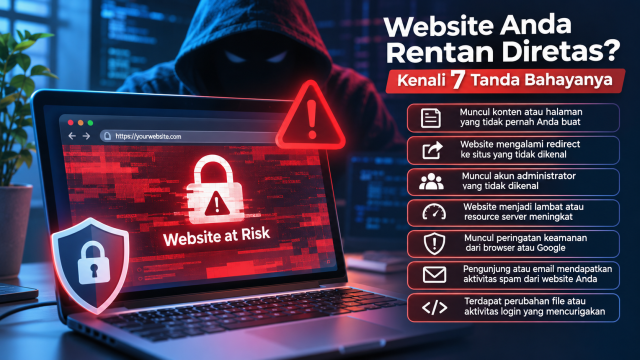
Before starting the recovery process, you should first identify whether your website has actually been compromised. Here are some common warning signs.
Your website appearance changes unexpectedly
Your website suddenly displays unfamiliar images, messages, or pages that you never created. This type of attack is commonly known as website defacement, where attackers change website content without permission.
Your website redirects visitors to unknown pages
Visitors are redirected to unfamiliar websites when they try to access your pages. This may happen because attackers have inserted malicious code into your website.
Unknown administrator accounts appear
If you find administrator accounts that you did not create, someone may have gained unauthorized access to your website.
Your website displays security warnings
Browsers or search engines may display warnings that your website is unsafe. This can happen when a website is detected distributing malware, hosting phishing content, or performing other suspicious activities.
Your website becomes unusually slow
A sudden increase in server resource usage, frequent errors, or unusual website performance may also indicate suspicious activity.
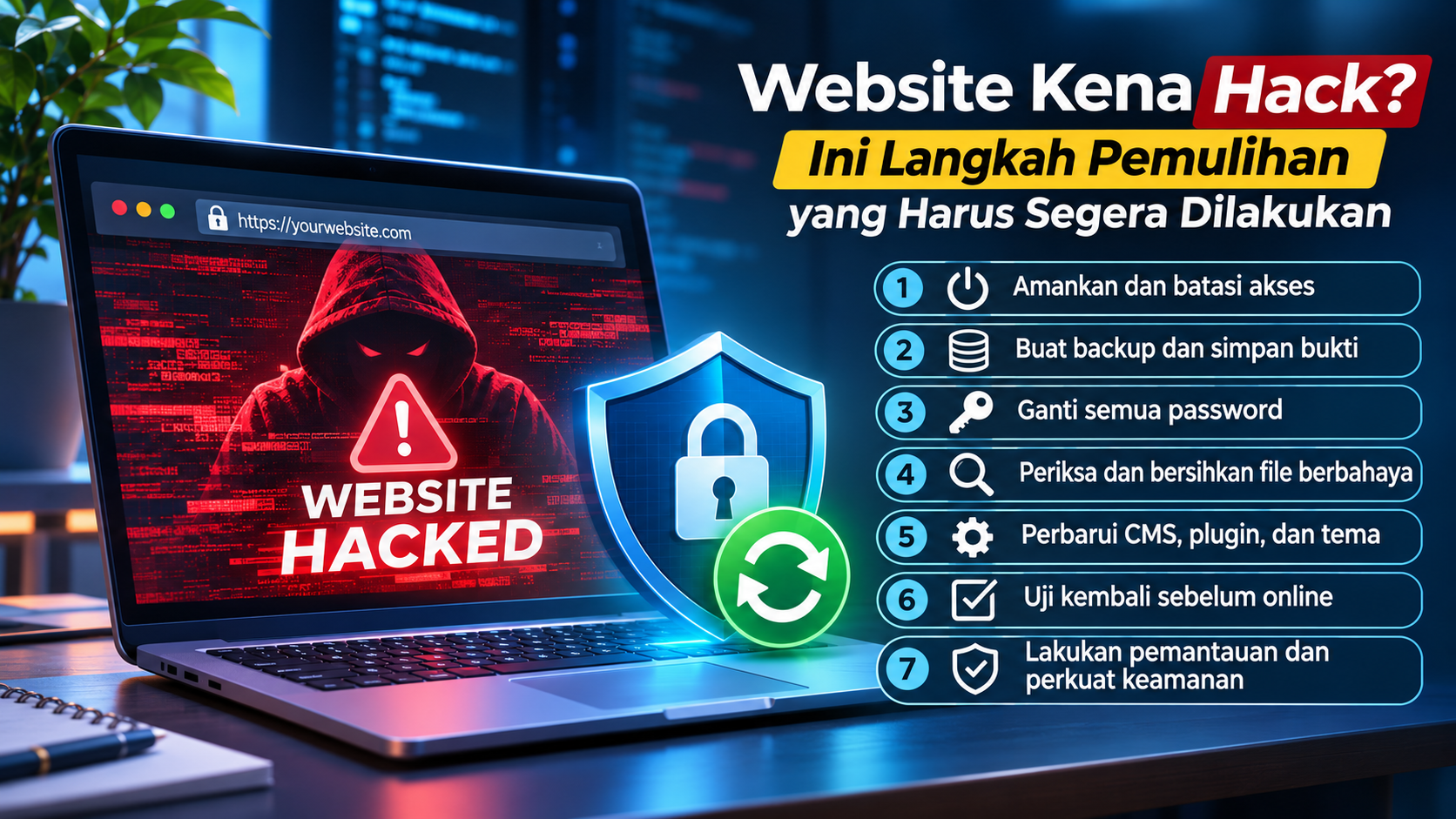
2. Secure Your Website and Limit Access Immediately
Once you confirm that your website has been hacked, avoid making major changes to its files or database without understanding the situation.
Your first priority should be to limit the damage and prevent further attacks.
If possible, enable maintenance mode or temporarily disable public access to the website. This helps prevent visitors from interacting with potentially harmful content.
If the attack is still active or your website is distributing malware, contact your hosting provider and ask them to isolate the affected website or hosting account.
Here are some initial actions you can take:
-
Restrict access to administrator accounts and suspicious users.
-
Temporarily disable features that are known to be compromised.
-
Avoid deleting suspicious files before investigating them.
-
If you manage your own server, consider temporarily restricting public access through firewall rules.
-
Contact your hosting provider if you cannot isolate the affected environment yourself.
Remember that temporarily disabling your website does not solve the problem. It simply reduces the risk while you investigate and recover the system.
3. Create a Backup and Preserve Evidence
Even if your website is compromised, do not immediately delete every suspicious file you find.
Before cleaning anything, create a copy of the current website. This backup can help with further investigation and provide useful information about how the attack happened.
You should preserve the following information:
-
All website files.
-
The website database.
-
Server and application logs.
-
The approximate time when the attack was first discovered.
-
A list of existing administrator accounts.
-
Suspicious files or recent changes.
Store this backup in a separate location that cannot be accessed directly from the compromised website.
Why is this important? Suspicious files and server logs may contain clues about the attack. They can help identify the source of the problem and determine which parts of the website have been affected.
However, do not immediately restore the website using this backup. It may already contain malicious files if the backup was created after the initial compromise.
4. Change All Passwords and Secure Your Accounts
One common reason websites get hacked is weak passwords, leaked credentials, or compromised administrator accounts.
You should change your passwords as soon as possible, using a device that you know is clean and secure.
Make sure to review and secure these accounts:
-
Website administrator accounts.
-
Hosting and control panel accounts, such as cPanel or CyberPanel.
-
FTP or SFTP accounts.
-
Database accounts.
-
SSH and server accounts.
-
Email accounts used to manage the website.
-
Third-party services connected to your website.
Use a different password for every service. Avoid reusing the same password for your website, email, and hosting accounts.
If available, enable Two-Factor Authentication (2FA). This security feature adds another verification step during login, such as a code from an authenticator application.
You should also review API keys, access tokens, and other credentials that may have been exposed. Revoke or replace any credentials that could have been compromised.
5. Inspect Infected Website Files and Databases
After securing your accounts, the next step is to inspect your website files and database to identify the source of the problem.
Attackers often insert malicious code into website files. This code may be used to steal information, create hidden administrator accounts, or give attackers a way to regain access.
Here are some important areas to inspect.
Application core files
If you use WordPress, check the core WordPress files and make sure they have not been modified unexpectedly. For frameworks such as Laravel or Yii2, review application files, configuration files, and publicly accessible directories.
Configuration files
Inspect files such as .htaccess, wp-config.php, and .env. Attackers may use these files to change website behavior or access sensitive information.
Recently created or modified files
Look for files with unusual modification dates, especially PHP files inside upload directories or folders that should only contain images and documents.
Website database
Check for unknown administrator accounts, unfamiliar content, injected scripts, or suspicious configuration changes.
If you do not have the technical knowledge to analyze these files, consider asking a developer or website security specialist for assistance. Do not delete files simply because their names look unfamiliar. Some of them may be legitimate application components.
6. Remove Malware and Restore Your Website
Once you have identified the source of the problem, you can start removing malicious files and restoring the website.
There are two common recovery approaches.
Clean the existing website
This approach involves inspecting and repairing infected files. Malicious files are removed, modified code is restored to a safe version, and unauthorized accounts are disabled.
This process requires careful investigation because not all malicious files are easy to identify.
Restore the website from a clean backup
If you have a backup from before the attack, you may be able to restore your website using that version.
However, make sure the backup is clean and does not contain malicious code. Before bringing the website back online, update the software and perform security checks to prevent the same vulnerability from being exploited again.
If you use a content management system such as WordPress, download fresh core files from the official source. Do the same for plugins, themes, and other components.
For framework-based websites, use trusted source code from your repository and make sure the deployed files do not contain unfamiliar modifications.
7. Update Your CMS, Plugins, Themes, and Website Components
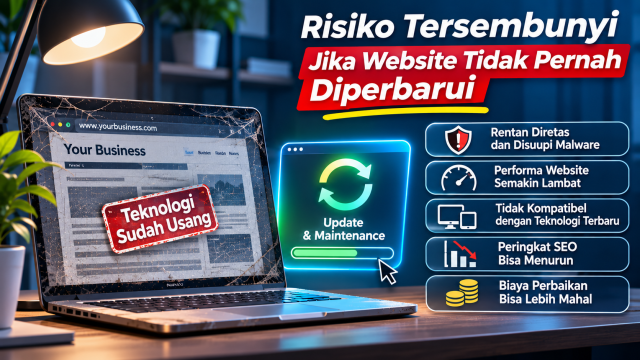
Websites that are not updated regularly may contain security vulnerabilities that attackers already know how to exploit.
Attackers often target outdated application versions, plugins, themes, and libraries.
After cleaning your website, review all the components it uses.
Here are some recommended actions:
-
Update your CMS, such as WordPress, to the latest stable version.
-
Update all installed plugins and themes.
-
Remove unused plugins and themes.
-
Install components only from official and trusted sources.
-
Update PHP or other runtimes according to your application's requirements.
-
Update libraries and dependencies with known security vulnerabilities.
-
Review your server configuration and file permissions.
Do not focus only on the main application. Forgotten plugins and third-party components can also become entry points for future attacks.
8. Test Your Website Before Bringing It Back Online
Once the cleaning process is complete, do not immediately assume that your website is completely safe.
Perform several tests to make sure the website works properly and no suspicious activity remains.
Here are some checks you should perform:
-
Open the homepage and other important pages.
-
Log in using your administrator account.
-
Make sure no unknown accounts still have access.
-
Check whether the website still redirects visitors to unfamiliar pages.
-
Inspect files and databases for remaining malicious code.
-
Review server logs for suspicious activities.
-
Make sure forms, payment features, and other important functions work correctly.
If your website previously received a security warning from Google Safe Browsing, check its security status and follow the review process after fixing the problem.
Do not request a security review before completing the cleanup process. If malicious content is still detected, the warning may remain active.
9. Monitor Your Website After Recovery
Even after your website has been restored, you should continue monitoring it.
Attackers may still have access through compromised accounts, hidden scripts, or vulnerabilities that were not discovered during the initial investigation.
Regularly monitor:
-
Administrator login activities.
-
Changes to website files.
-
Newly created user accounts.
-
Server CPU, RAM, and bandwidth usage.
-
Application and server errors.
-
Unusual network activities.
-
Unexpected database changes.
If possible, use security monitoring services to detect suspicious file changes and unusual activities.
You should also schedule regular backups. Keep multiple backup versions in separate locations so you can restore your website if another problem occurs.
10. Prevent Your Website from Being Hacked Again
Recovering a website is not just about removing malicious files. You also need to fix the security weaknesses that allowed the attack to happen.
Here are some important security practices you should implement.
Use strong passwords
Create long, unique passwords for every service. Consider using a password manager to make it easier to manage multiple accounts.
Enable Two-Factor Authentication
Add an extra verification step to administrator, hosting, email, and other important accounts.
Perform regular backups
Schedule automatic backups and store copies in separate locations. Test the restoration process occasionally to make sure your backups actually work.
Keep your software updated
Make sure your CMS, plugins, themes, frameworks, libraries, and server software receive regular security updates.
Limit user permissions
Give users only the permissions they need. Avoid giving administrator access to people who only need to manage website content.
Use SSL/TLS
Make sure your website uses HTTPS to encrypt communication between visitors and your server. However, remember that SSL/TLS does not replace malware protection or application security.
Use firewalls and security tools
A Web Application Firewall (WAF), malware detection tools, and login attempt restrictions can help reduce the risk of attacks.
Perform regular security checks
Do not wait until your website gets hacked. Regularly review server configurations, file permissions, user activities, and application components.
Conclusion
A hacked website can cause serious problems, including business interruptions, reputational damage, and compromised customer information. However, the situation can still be handled if the recovery process is performed correctly.
The most important steps are to limit the impact of the attack, preserve backups and evidence, secure all accounts, inspect website files and databases, and then clean and restore the website from a safe condition.
Once your website is back online, make sure to fix the security weaknesses that caused the attack. Keep your software updated, use strong passwords, enable two-factor authentication, and maintain regular backups.
If your website is used for business operations or stores customer information, consider getting help from a professional. Proper handling from the beginning can reduce the risk of further damage.
Remember, a website that is back online is not necessarily a secure website. Make sure the source of the attack has been identified and fixed before considering the recovery process complete.